
iT Factor logoiT FactorSelf Tape Studio

Search The Help Center

Need another walkthrough?

Search the guide hub or jump back to Settings and archiving topics connected to storage safety.

Account / Settings

Backups are there to make recovery simpler, not make the app feel heavier.

Backups & Restore is the storage safety area of iT Factor. It helps protect your work, create extra restore points before major changes, and bring content back if needed.

For most users, the simplest good pattern is: turn backups on, let the latest backup stay current, and only create restore points before bigger changes.

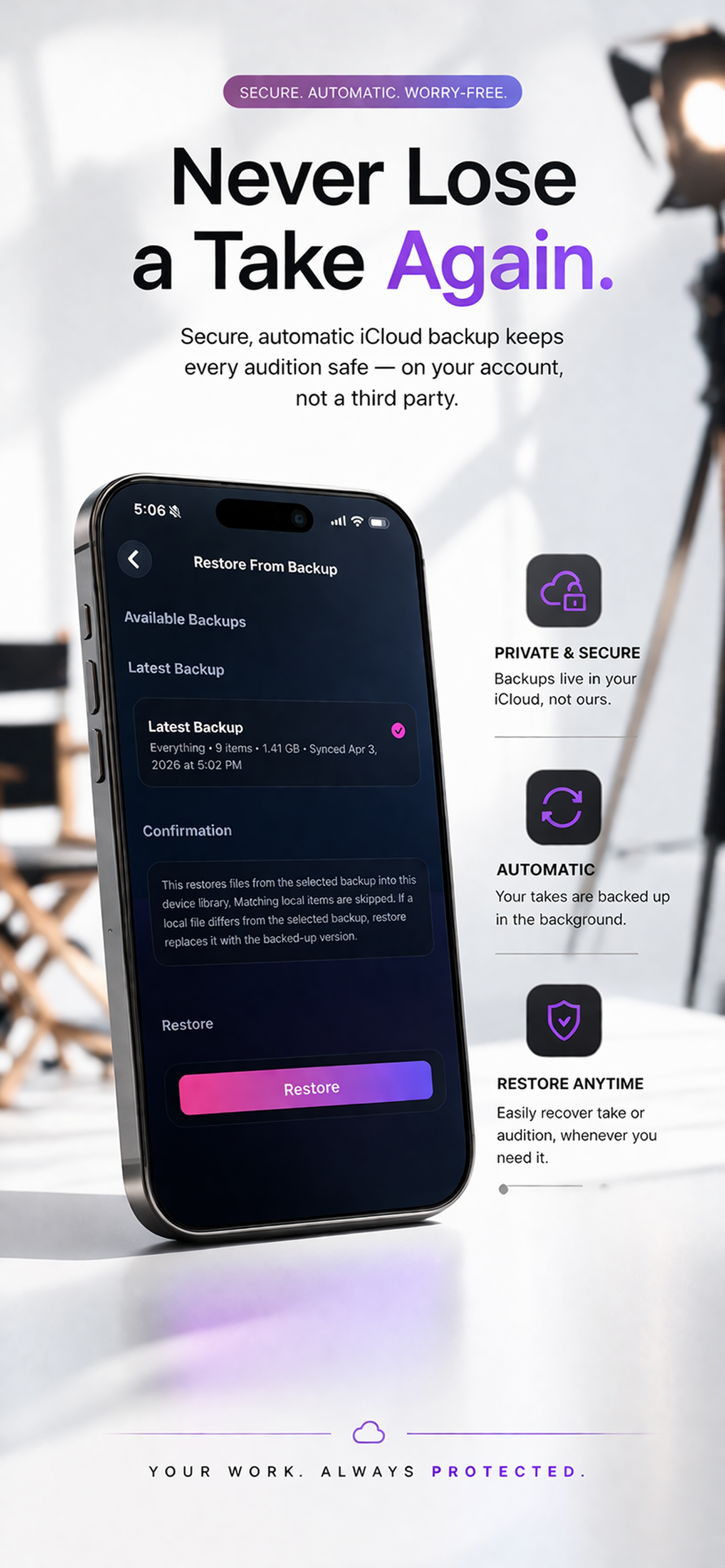
iT Factor backup and restore marketing image showing a restore-from-backup screen on iPhone

Quick Start

What most people actually need to do here.

Best default setup

  • Turn backups on
  • Use Latest Backup as the normal protection layer
  • Choose All Projects unless you truly want something narrower

Use manually when needed

  • Create a Restore Point before major cleanup or reorganization
  • Use Restore only when you genuinely need to bring things back
  • Leave cleanup tools alone until storage builds up
Part 1

Backup Basics

Backups are optional but strongly recommended. They are not the same thing as sync.

Presets
  • Everything
  • Deliverables only
Scope options
  • All Projects
  • Pinned Projects
Safest choice for most users
  • Everything
  • All Projects

If you want the broadest and simplest protection, use Everything with All Projects. That avoids the easy mistake of expecting a project to be backed up when it was never included in a narrower scope.

Part 2

Automatic Backup and Latest Backup

Automatic backup is the normal everyday protection layer. Latest Backup is the status view that tells you whether it is current.

Turning it on does
  • Enable iCloud Drive backup behavior when available
  • Let the app quietly keep the latest backup current
Turning it off means
  • Backup creation tools may be unavailable
  • Restore choices may be limited
Best practice
  • Let Latest Backup do the regular work
  • Do not create manual backups every day

Most users should not treat backup like a daily task list. The healthiest pattern is to trust the rolling latest backup, then step in manually only before bigger decisions.

Part 3

Backup Actions and Project Preferences

This is where you can sync the latest backup, create a restore point, restore from backup, or decide which projects take part in automatic backup behavior.

Main actions
  • Sync Latest Backup
  • Create Restore Point
  • Restore From Backup
Project preferences help with
  • All projects versus pinned projects
  • Deciding what gets included automatically
When to create a restore point
  • Before cleanup
  • Before reorganization
  • Before important edits

A restore point is the “extra peace of mind” tool. You usually do not need one before every ordinary work session, but it is a smart move before larger changes.

Part 4

Storage, Retention, and Manage Backups

These are the management tools for older backups and growing storage use.

You may see
  • Storage use summaries
  • Retention controls
  • Manual cleanup actions
Most users should remember
  • Cleanup tools are real management tools
  • They are not part of normal daily use
Use this area when
  • Storage has actually built up
  • You need to understand what older backups are taking space

If storage is not a problem yet, you can usually leave retention and cleanup alone. They matter most when you are intentionally managing history, not when you are simply trying to stay protected.

Part 5

Restore From Backup

Restore is the recovery path. It is helpful when you need it, but it should not be used casually.

Normal restore flow
  • Choose the backup source
  • Review the confirmation details
  • Let restore progress run to completion
Good to know
  • Restore can replace current local items with backed-up versions
  • It is meant to recover work, not to browse casually
Best advice
  • Restore only when you truly need to bring content back

For non-technical users, the safest way to think about restore is simple: it is the recovery tool, not the normal navigation path.

Quick Help

A few backup details explained.

Latest Backup

This is the current running backup state the app is maintaining for you.

Restore Point

This is a dated checkpoint you create before a bigger change when you want extra peace of mind.

Everything versus Deliverables only

Everything is broader and simpler. Deliverables only is narrower and better for people who intentionally want a lighter backup scope.

All Projects versus Pinned Projects

All Projects is usually safer. Pinned Projects is more selective and easier to misread if nothing is pinned.

Cleanup

Cleanup helps when storage builds up. It is not a task most users need to perform often.

Restore Progress

Once restore starts, let it finish. It is there to bring work back cleanly, not to be interrupted casually.

FAQ

Quick answers before you move on.

Do I need to use backup tools every day?
No. For most people, turning backups on and letting Latest Backup stay current is enough for everyday use.
Should I choose Everything or Deliverables only?
Everything is the easiest and safest choice for most users who want simpler protection.
When should I create a restore point?
Before major cleanup, reorganization, or other changes where you want a fallback point.
When should I use Restore?
Use Restore only when you truly need to bring content back onto the device.

Related Guides

Keep going when you are ready.

PreviousApp Settings

Return to the broader settings map.

NextArchiving Projects

See how archiving differs from backup protection.

Download iT Factor

Keep your work protected without making backup management your whole day.

The safest setup is usually the one you can trust quietly in the background.