iT Factor logo iT FactorSelf Tape Studio

Search The Help Center

Need another walkthrough?

Search the guide hub or move between project, slate, review, and export guides connected to the camera workflow.

Self-Tape Tools

Treat the camera as your working audition station, not just a record button.

The iT Factor camera is built to hold more than raw capture. It can carry your sides, notes, slate setup, teleprompter, quick audio and camera tools, and a fast bridge back into review. The key is knowing which parts matter first.

For a brand-new user, the simplest path is still: stay in Scene mode first, record what you need, use Slate when it is time, and save the deeper tools for later.

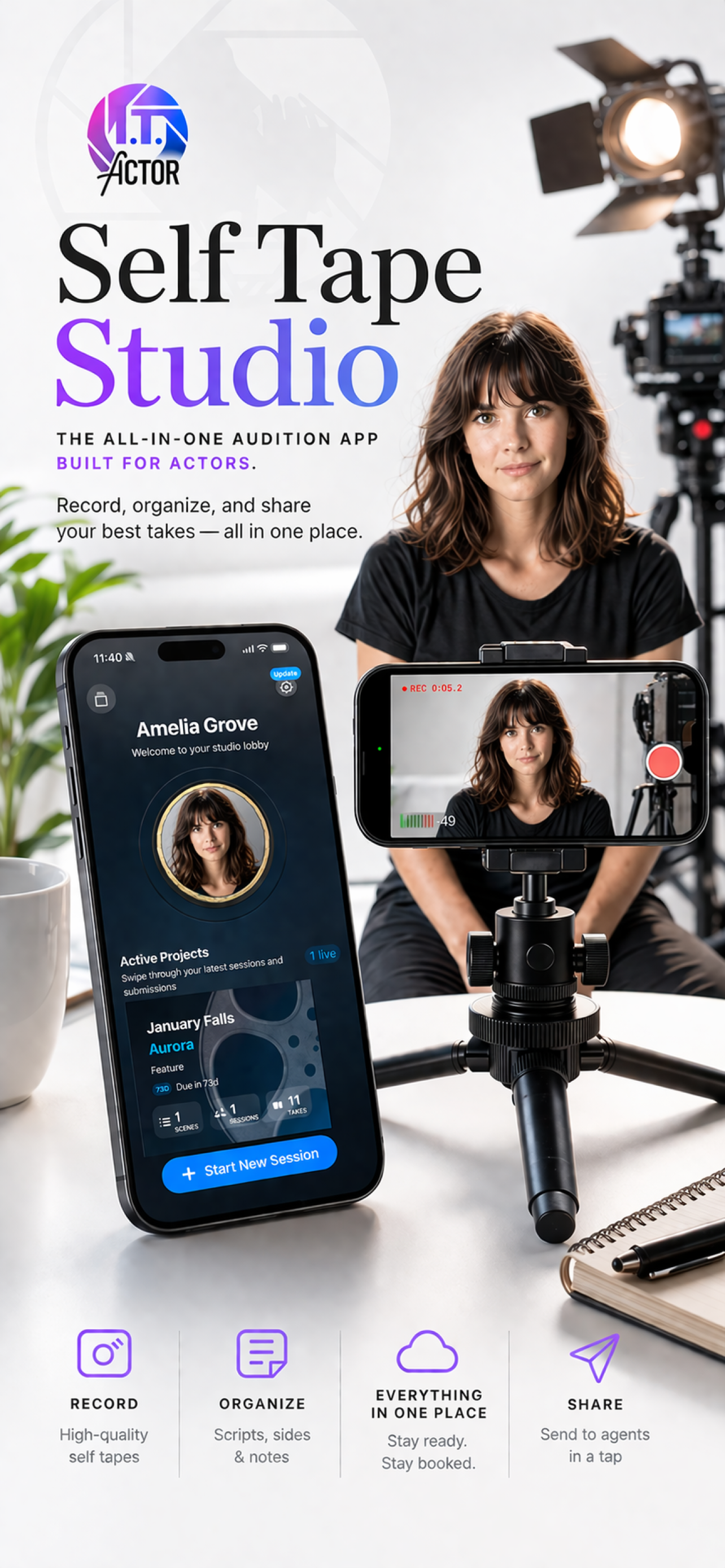
iT Factor recording workflow on iPhone

Quick Start

What to focus on in your first recording session.

Start here

  • Stay in Scene mode first
  • Record your scene takes
  • Use the documents button only if you need sides or notes
  • Switch to Slate mode when it is time for your slate

Learn later if needed

  • Picture-in-Picture slate flow
  • Detailed teleprompter controls
  • Watch Remote behavior
  • Advanced camera and audio tweaks
Part 1

What comes into the camera and how the main modes work

The camera can open with project-aware material already attached, so it behaves more like an audition workstation than a blank recorder.

The camera may already know about
  • Sides
  • Breakdown and notes
  • Slate configuration
  • Project framing guidance
Main capture modes
  • Scene for acting takes
  • Slate for slate recording
  • Keyframe Photo for the still image used later in presentation
Best first-time rule
  • Spend most of your time in Scene mode first
  • Use Slate and Photo only when you are ready for those tasks

This one shift makes the screen feel less intimidating. You do not need to use every mode at once. You only need the one that matches the step you are on.

Part 2

Top bar, quick controls, and recording state

The top bar and side controls are there so you can stay inside the camera workflow instead of bouncing out of it.

Top bar tools can include
  • Mode selector
  • Settings button
  • Documents button
  • Watch or PiP-related status
Quick controls can include
  • Audio panel
  • Latest-take shortcut
  • Camera controls
  • Camera flip
When recording is live
  • You will see the REC timer
  • Some controls become more limited
  • The screen is prioritizing active capture

If you only use a few of these tools at first, that is normal. Their job is to keep you moving smoothly once you know what you need from them.

Part 3

Settings, audio, and camera aids

The in-session settings layer gives you the most useful recording aids without sending you back into a deeper settings screen.

Helpful recording aids
  • Audio Meter for live sound feedback
  • Level Indicator for straighter framing
  • Record Blink for a torch cue on supported back-camera setups
More advanced options
  • Continuous Flip
  • Mirror Camera
  • Audio input and output choices
  • Exposure, focus, and recording quality
Best first-day advice
  • Use the meter and level tools if they help
  • Do not feel pressure to tune everything before you record

The safest pattern for most people is to use only the tools that reduce anxiety in the moment. If a control helps you feel steadier, keep it. If it adds noise, leave it alone for now.

Part 4

Session Takes, teleprompter, and slate-specific tools

Some of the most powerful tools in the camera are there to help you preview, guide, and refine without leaving the session.

Session Takes is best for
  • Quick preview
  • Quick rating
  • Checking the latest scene, slate, or photo without fully leaving the camera
Teleprompter can help with
  • Auto or custom script display
  • Preview scrolling
  • Adjusting font size, speed, and opacity
Slate extras can include
  • Slate Reminder guidance
  • Picture-in-Picture slate stages
  • Keyframe Photo prompts to avoid a random thumbnail

These tools are useful, but they are still supporting actors. The main job of the screen is to help you capture clean material with less stress.

Part 5

How the camera hands off to review

The camera is not the end of the workflow. It is built to hand you back into review cleanly when you are ready.

Normal handoff points
  • Session Takes for quick checks
  • Take Review for deeper comparison, deliverables, and export
When to stay in-camera
  • You only need a quick look
  • You want to rate a take and keep moving
When to move to Take Review
  • You want careful playback
  • You have longer clips
  • You are choosing finals or exporting

If you see an exit-processing message after recording, that is normal. The app is saving work and preparing the next step so review feels clean instead of abrupt.

Quick Help

A few camera-session details explained.

Scene, Slate, and Keyframe Photo

These are separate jobs. Scene is for acting takes, Slate is for intro material, and Keyframe Photo helps control how the submission opens visually.

Session Takes

This is the quick in-camera review path. It is best for short previews and quick ratings, not long detailed review.

Teleprompter

The teleprompter can use auto or custom wording. It is there to support clarity, not make the screen feel busier.

Watch Remote

This is for remote control support from Apple Watch. It is helpful if you record from a distance, but it is not required for a normal session.

Audio Meter and Level Indicator

These are confidence tools. Use them if they help you trust your framing and sound more quickly.

Take Review versus camera preview

Use the camera for quick checks and Take Review for deeper watching, comparing, finals, and export.

FAQ

Quick answers before you move on.

Which mode should I use first?
Start with Scene mode first. That is where most first-time users spend the majority of their session.
Do I need to use the teleprompter on day one?
No. It is a helpful tool when you need it, but it is not required to get through a normal first recording session.
What is Session Takes best for?
Quick preview and quick rating while you are still actively recording.
When should I leave the camera and go to Take Review?
When you want longer playback, careful comparison, final selection, deliverables, or export.

Related Guides

Keep going when you are ready.

PreviousProject Lobby

Return to the project-level home base.

NextTake Review

Move from capture into comparison and decision-making.

Download iT Factor

Keep the recording session focused on performance, not friction.

The best capture tools are the ones that make you feel calmer and more prepared in the moment.