iT Factor logo iT FactorSelf Tape Studio

Search The Help Center

Need another walkthrough?

Search the guide hub or move between review, export, and delivery-focused guides from here.

Self-Tape Tools

Export is where your finished work becomes a send-ready file.

The export flow in iT Factor is designed to prepare clean deliverables without making you think like an editor. The most important ideas are simple: export starts in Take Review, only Final takes are included, and for most people one polished merged file is the right first choice.

If you are unsure what to choose, start with a merged video, Studio quality, and MP4. That is usually the cleanest path for most users.
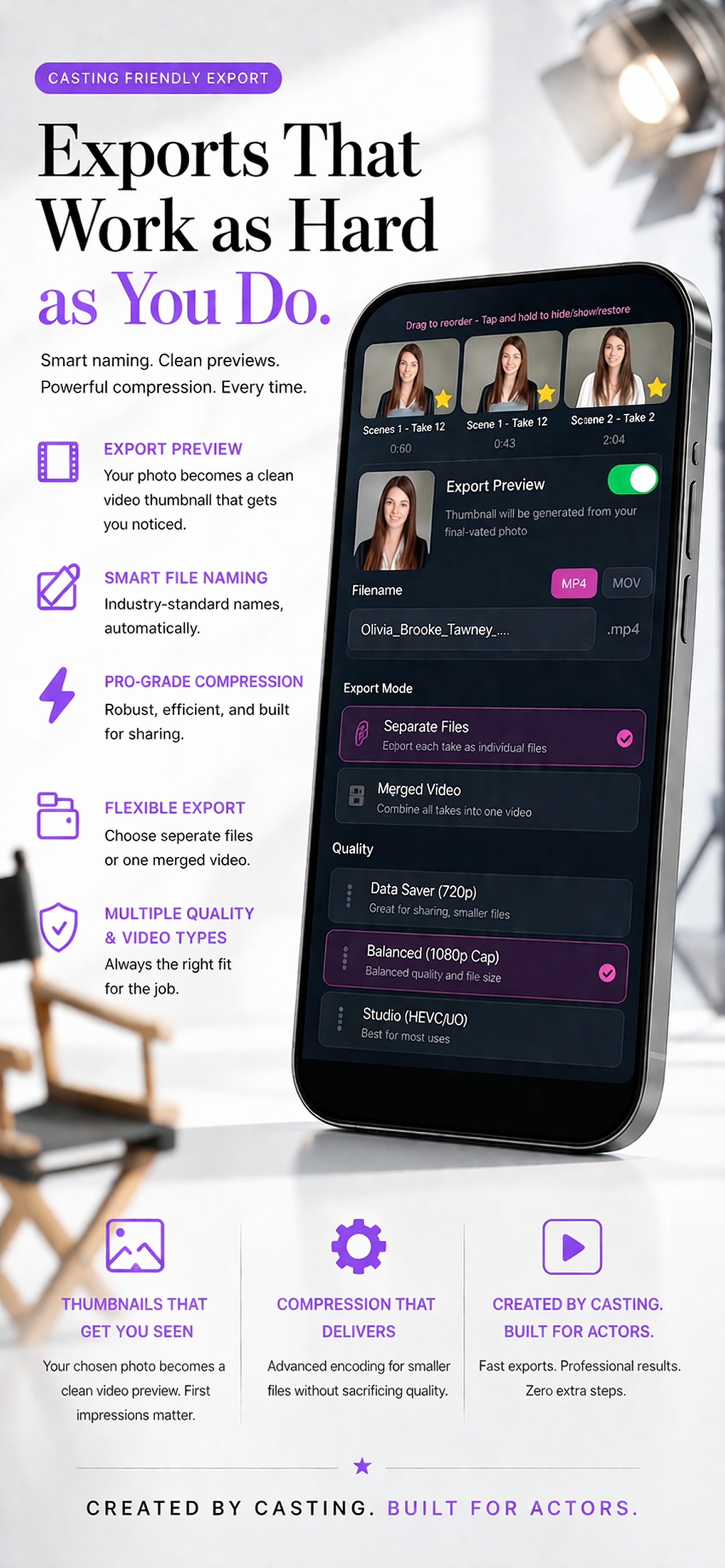
iT Factor export screen on iPhone

Quick Start

The simplest good export choice for most people.

Start with

  • Final takes selected in Take Review
  • Merged Video
  • Studio quality
  • MP4

Change only when needed

  • Use Balanced or Data Saver for smaller files
  • Use Separate Files if casting asks for separate clips
  • Use MOV only when you specifically want an Apple-leaning format
Part 1

Where export starts and what it includes

Export begins in Take Review after you already have recorded material in the session.

Normal path
  • Open the project
  • Go to Take Review
  • Tap Export & Share
Export can include
  • Scene takes
  • Slate takes
  • Merged deliverables
  • Separate final take files when that mode is chosen
Important note
  • Keyframe photos support export presentation
  • They are not exported the same way as normal video takes

Think of export as the point where the app turns chosen material into a finished share-ready result, not as an extension of the recording screen.

Part 2

Merged Video versus Separate Files

The first major choice is whether you want one finished file or multiple individual files.

Merged Video is best when
  • You want one clean deliverable
  • You are sending a standard self-tape submission
  • You want the simplest polished export path
Separate Files is best when
  • Casting asks for separate clips
  • You need each included take as its own file
  • You want more control over file-by-file delivery
Most users should start with
  • Merged Video
  • Then only switch if the submission instructions require something else

For a normal self-tape, merged video is usually the easiest and cleanest answer. Separate files is more situational.

Part 3

Quality and professional compression

The quality ladder is there to help you choose the balance between file size and visual quality without drowning in technical language.

Quality choices
  • Data Saver (720p)
  • Balanced (1080p Cap)
  • Studio
  • Passthrough
Simple guidance
  • Studio is the best starting point for most uses
  • Balanced is the practical smaller-file option
  • Data Saver is for stricter file limits
Passthrough is for
  • People who intentionally want the least-compressed path
  • Larger files and more source-like behavior
  • Not most first-day exports

You do not have to speak compression language to make a good choice. If you want the safest default, pick Studio and move on.

Part 4

MP4, MOV, naming, and visual presentation

After quality, the next practical choices are format, filename behavior, and how the export presents itself visually.

MP4 is usually best for
  • Email
  • Upload portals
  • Casting websites
  • Maximum compatibility
MOV is usually best for
  • Apple-leaning workflows
  • Situations where you specifically want MOV
The export manager can also handle
  • Automatic filenames from project and session context
  • Preview and thumbnail behavior
  • Photo intro choices
  • Reordering included takes before the final file is created

If you are not sure, MP4 is the safer default. The automatic filename is usually enough too, so this is rarely the moment to over-customize.

Part 5

What happens after export

Export prepares the file and lets you share it, but that is still separate from marking the deliverable as submitted inside the app.

After export you can
  • Review the result
  • Share the file where it needs to go
  • Return to the session if you need a change
Remember this difference
  • Export prepares the file
  • Submitted tells the app it has actually been sent
Best finishing pattern
  • Review the exported file once
  • Share it
  • Mark submitted when it is truly out the door

This keeps reminders, project status, and your own workflow aligned. Export is the preparation step. Submitted is the completion step.

Quick Help

A few export details explained.

Final takes

Export is built around the takes you marked as Final. If something is missing, this is the first thing to check.

Merged Video

This combines selected material into one finished video and is usually the right starting point for a standard self-tape delivery.

Separate Files

This creates individual files and is better when casting wants separate clips instead of one combined submission.

Studio quality

This is the professional-quality starting point that makes sense for most users when they are not sure what to choose.

Passthrough

This is the least-compressed route and usually creates the largest files. Most first-time users do not need it.

Photo intro and thumbnail behavior

This affects the visual presentation of the export. It is separate from the main video takes themselves.

FAQ

Quick answers before you move on.

What is the easiest export choice for most people?
Merged Video, Studio quality, and MP4.
Why is something missing from export?
The most common reason is that the take was not marked as Final.
Should I choose MP4 or MOV?
MP4 is the more universal choice and usually the safest default for broad compatibility.
Does exporting mean the tape is submitted?
No. Export prepares the file. Submitted is the status that confirms it was actually sent.

Related Guides

Keep going when you are ready.

PreviousTake Review

Return to the screen where your export decisions begin.

NextSelf-Tape Checklist for Actors

Use a final delivery checklist before you send.

Download iT Factor

Export with less second-guessing.

The right export flow should make delivery feel cleaner, not turn into a technical side quest.