iT Factor logo iT FactorSelf Tape Studio

Search The Help Center

Need another walkthrough?

Search the guide hub or move between due-date, project, settings, and review guides from here.

Account / Settings

Notifications are there to help with due dates, not to nag you.

In iT Factor, the main user-facing notification system is built around audition reminders. These reminders help you remember what still needs attention, route you back into the right project, and quiet down once the work is actually finished.

Nothing about notifications is required to use the app. If reminders help you stay ahead of deadlines, they are worth turning on. If not, the rest of the app still works normally.

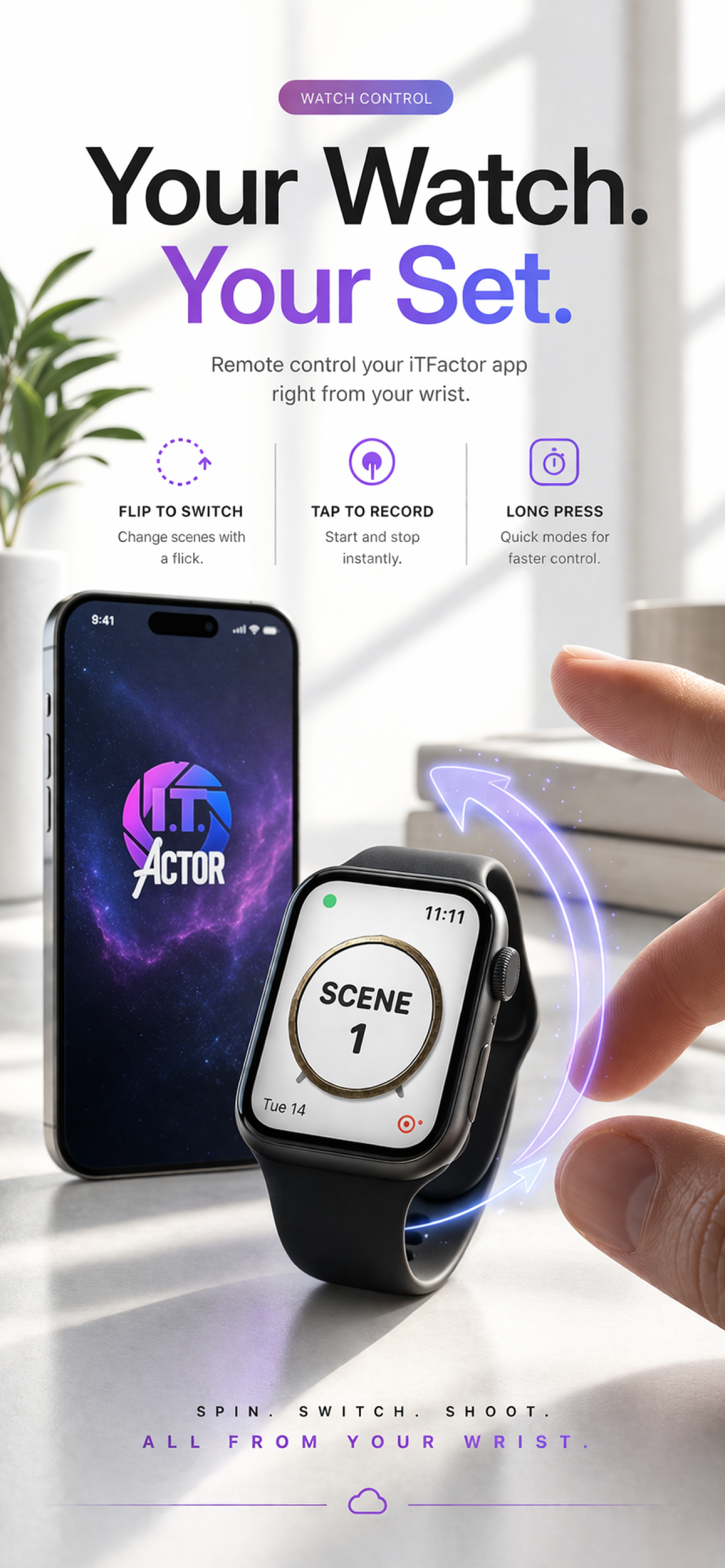
iT Factor Apple Watch and iPhone marketing image

Quick Start

The simplest way to think about reminders.

Turn them on if

  • You want help remembering due dates
  • You want a fast route back into the correct project
  • You like time-based nudges before a deadline

Keep these details accurate

  • The project due date
  • Whether the project is still active
  • Whether the deliverable was actually marked as submitted
Part 1

Permission and what notifications are for

The app may ask for notification permission during onboarding, framed around audition reminders.

If you allow notifications
  • The app can schedule reminder notifications for active work that still needs attention
  • They are tied to due dates and project state
If you do not allow notifications
  • The app still works
  • Your projects and workflow still work
  • You simply will not receive those reminder notifications
The main purpose
  • Due-date reminders
  • Status nudges that help you stay on schedule
  • Quick return to the correct project

These are not primarily about random alerts or marketing. The main thing to understand is the reminder system around auditions and deadlines.

Part 2

When reminders exist and the types you may see

Reminders are maintained only while the project still needs them.

Reminders usually stay active when
  • The project is active
  • The session is still active
  • The due date is still in the future
  • The session does not already have a submitted deliverable
Main reminder types
  • Due Tomorrow, roughly 24 hours ahead
  • Due Soon, roughly 2 hours ahead
  • Remind in 1 Hour if the timing still makes sense before the deadline
Reminder details can include
  • Project title
  • Role or session context
  • Due timing

This is why keeping due dates accurate matters. The reminders are only as useful as the project timing they are based on.

Part 3

Open Project and Remind in 1 Hour

Notifications are designed to help you act quickly, not just read and dismiss.

Open Project does
  • Route you back into the correct project and session
  • Save time when you are away from the app
Remind in 1 Hour does
  • Schedules a one-hour snoozed reminder when that still lands before the due date
  • Does not schedule if the project would already be due by then
How reminders may appear
  • Banner
  • Sound
  • Badge

The notification actions are there to lower friction in the moment. If you need to jump back into the right project fast, they can help.

Part 4

How reminders stop

The normal “I am done with this audition” path is more specific than just exporting a file.

Normal stop-reminder path
  • Export the final deliverable
  • Send it where it needs to go
  • Mark the deliverable as submitted inside the app
Other things that change reminder behavior
  • Due-date changes
  • Archived projects leaving the active reminder pool
The important rule
  • Export alone does not mean submitted
  • The app uses submitted state to understand that reminder responsibility should end

If you already sent the audition but forgot to mark it as submitted, reminders may keep acting like the work is still open. That is the first thing to check.

Quick Help

A few notification details explained.

Due Tomorrow

This is the earlier reminder, usually around a day ahead of the due time.

Due Soon

This is the closer reminder, usually around two hours before the due time.

Remind in 1 Hour

This is a short snooze option that only appears when a one-hour reminder still makes sense before the deadline.

Open Project

This is the shortcut back into the relevant project and session from the notification itself.

Submitted state

This is what tells the app the work is truly sent. It matters more than export alone when it comes to reminders.

Archived projects

Archived work is not treated like active reminder targets in normal use.

FAQ

Quick answers before you move on.

Do I need notifications turned on to use iT Factor?
No. Notifications are optional. The rest of the app still works if you leave them off.
Why am I still getting reminders after exporting?
Exporting is not the same as marking the deliverable as submitted. Submitted state is what usually stops reminders.
What does Open Project do?
It routes you back into the relevant project and session tied to that reminder.
What happens if I hit Remind in 1 Hour?
The app tries to create a one-hour snoozed reminder, as long as that reminder would still happen before the project is due.

Related Guides

Keep going when you are ready.

PreviousArchiving Projects

See how reminders and active project status change when work is archived.

NextApp Settings

Return to the broader control center for the app.

Download iT Factor

Let reminders support the work instead of haunting it.

The best notification system is the one that helps you stay on time, then gets quiet when the audition is truly done.