iT Factor logo iT Factor Self Tape Studio

Search The Help Center

Need another walkthrough?

Search the guide hub or jump into the ActorKit and profile guides that feed the card details you see here.

Size Card Creator · ActorKit

Build a clean size card without showing more than you want.

Size Card Creator turns the profile information you already saved into a polished, shareable card. You do not need every possible detail filled in. The card only shows the information that exists and the items you choose to turn on.

The smoothest path is: choose the right headshot, confirm the core sizes you know, then use the preview to decide what belongs on the card.

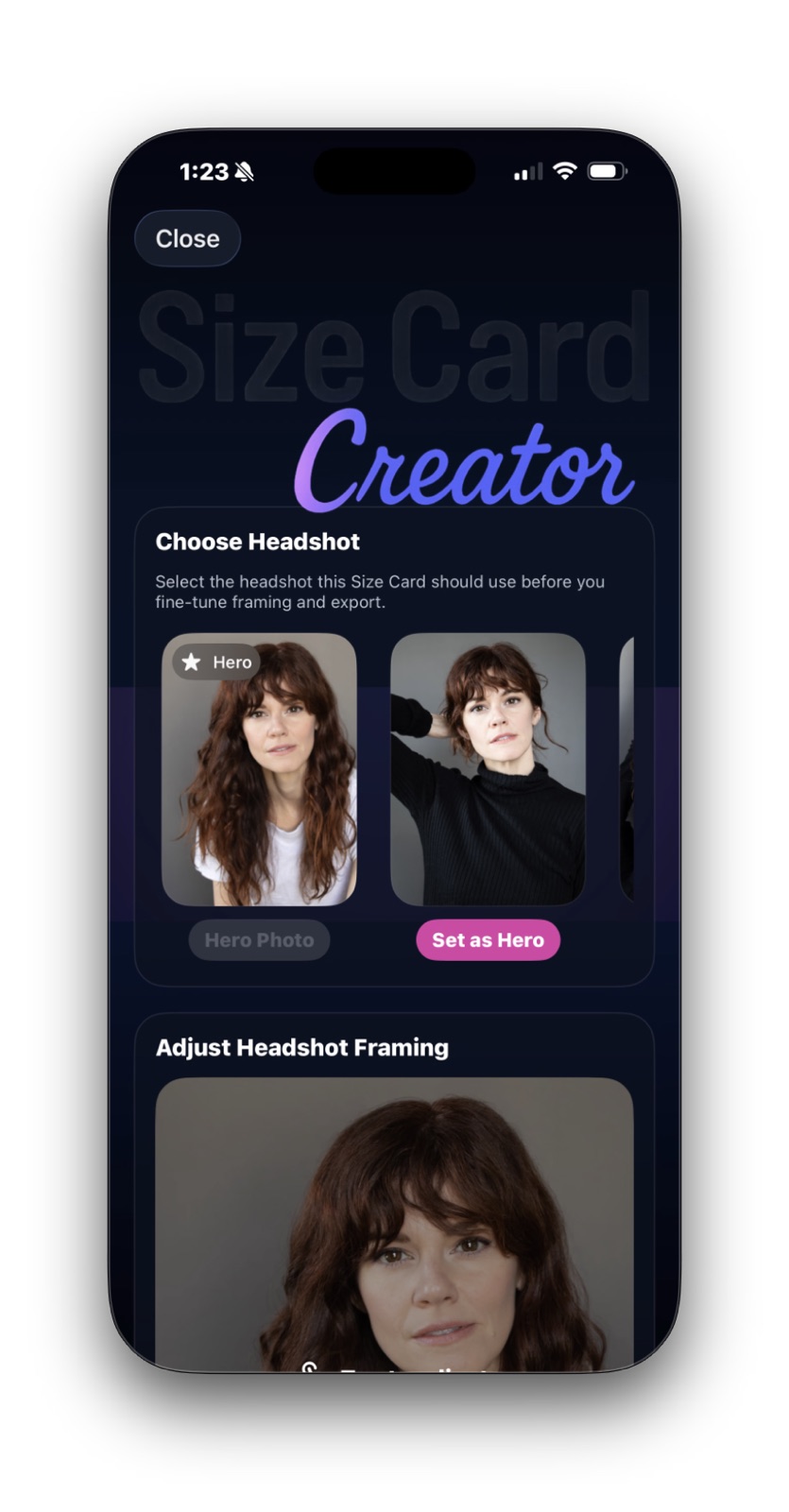
Size Card Creator showing headshot selection and the beginning of the framing section

Quick Start

What you need right now, and what can wait.

A useful size card starts with a few strong basics. The rest is about deciding how much of your saved information you want to show.

Strongly recommended

  • A preferred headshot
  • Your everyday sizes and key measurements
  • Email and phone, if you want them shown
  • At least one rep, if you want representation shown

Optional

  • Local hire market
  • Social links
  • Watermark QR branding
  • Every possible measurement
Part 1

Choose the Headshot and Frame It Well

The headshot is the most immediate part of the card, so it is worth getting the selection and crop right.

Best to have now
  • Your preferred headshot
  • A framing that feels balanced
Optional for now
  • Trying every photo variation
  • Perfecting the crop immediately
Used later in
  • The card preview
  • Saved card output
  • Shared PDF or PNG exports

What to focus on here

Start by choosing the headshot that best matches how you want to present yourself professionally right now. Then use the framing controls to keep the crop balanced.

A card often needs a slightly different crop than your main profile image. That does not mean the photo is wrong. It just means the card needs its own cleaner framing.
Size Card Creator showing headshot selection and the beginning of the framing section
Choose the headshot you want the card to use before you fine-tune anything else.
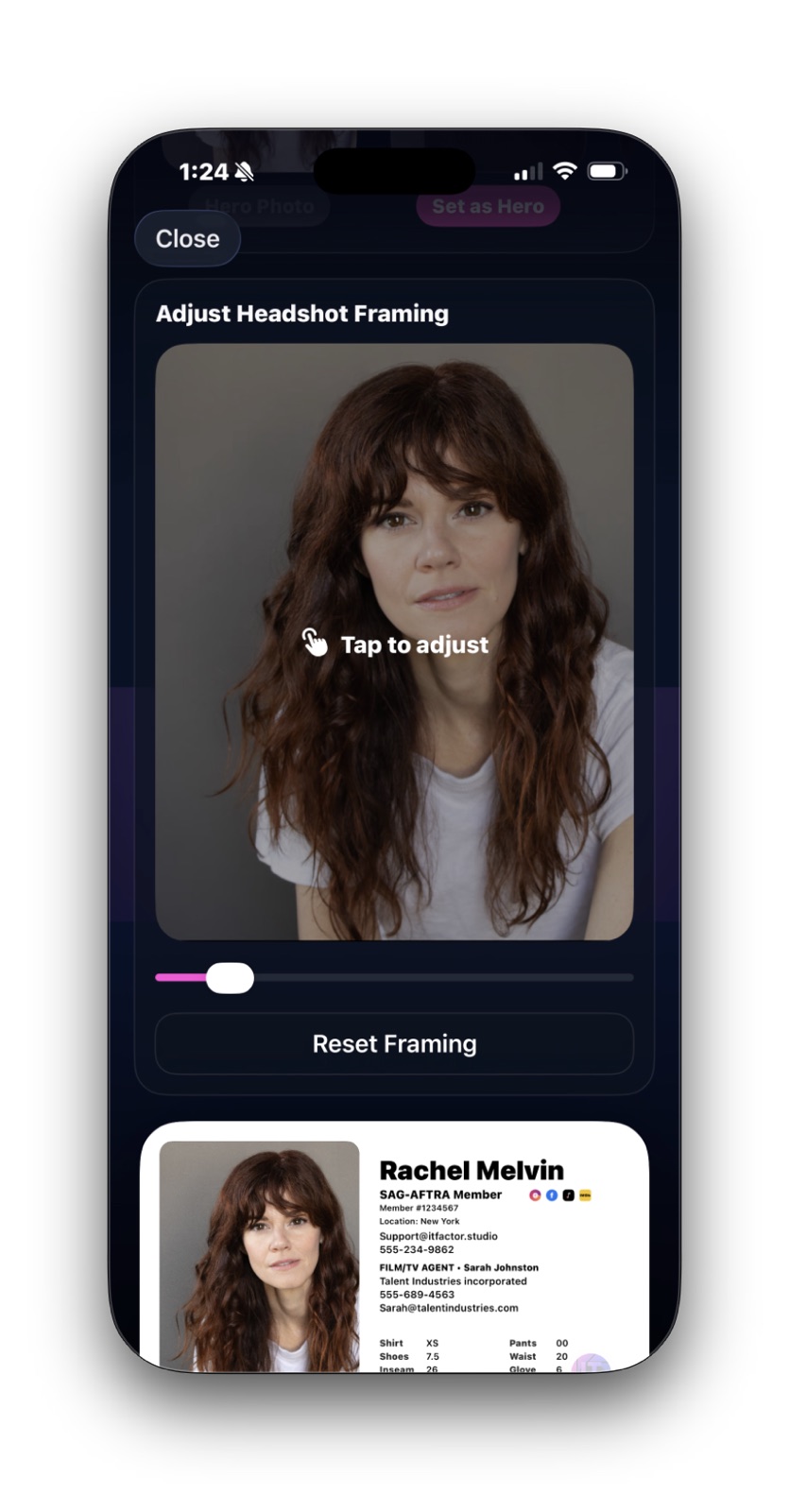
Size Card Creator showing the headshot framing controls above a live size card preview
Framing lets you reposition and zoom the image until the card feels clean and natural.
Part 2

Use the Preview to Decide What Belongs

The live preview is the best place to judge whether the card feels complete or crowded.

Good to know
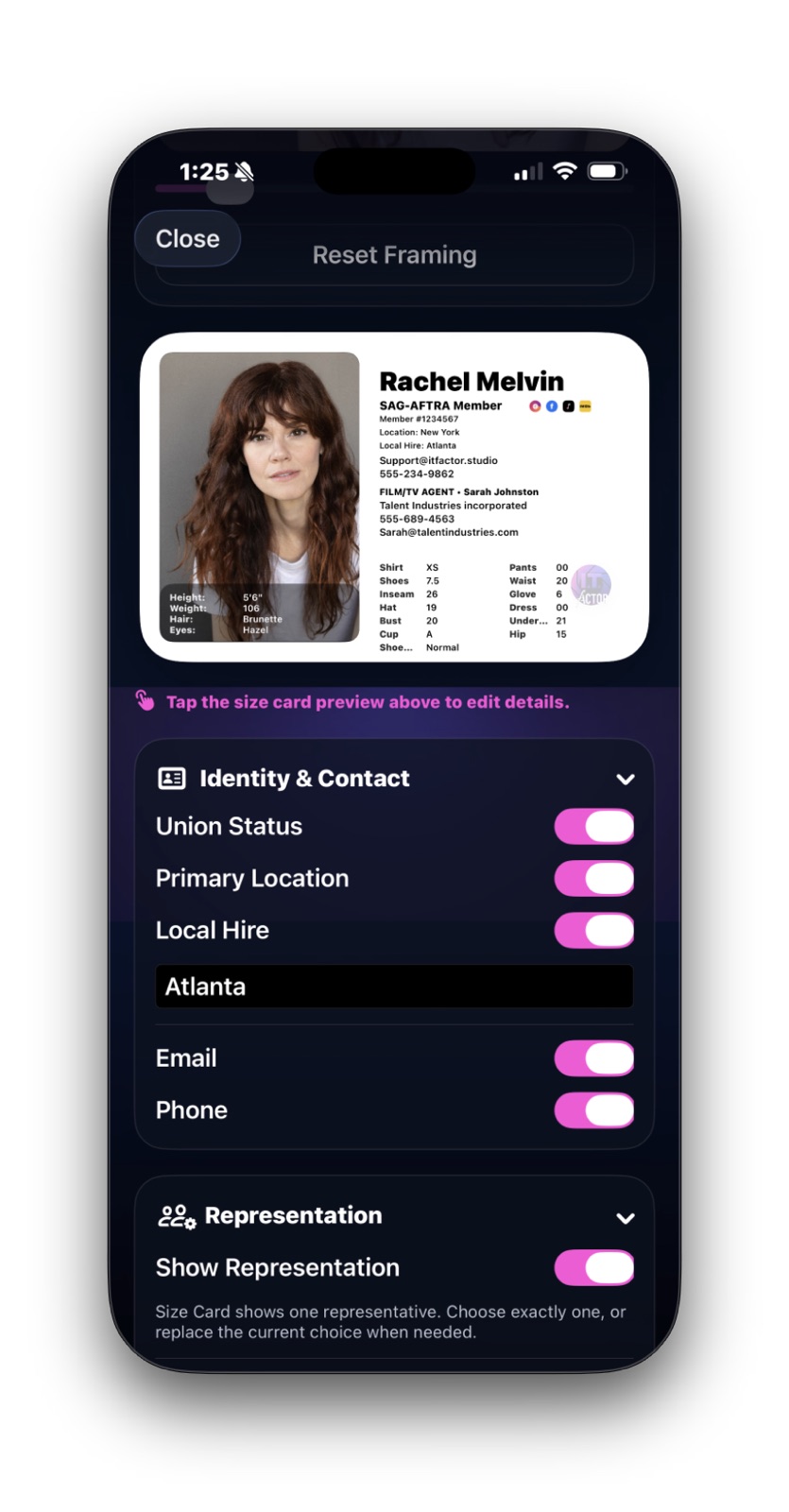
  • Tap the preview to open Size Card Settings
  • Long-press the preview to zoom it full screen
You can turn on or off
  • Union status
  • Primary location
  • Local hire
  • Email and phone
Used later in
  • The final card design
  • The saved export
  • What casting actually sees

What to focus on here

Think of the preview as the card’s truth test. If it feels cluttered, simplify it. If something important is missing, decide whether it belongs on the card or should stay private.

Local hire is a good example. You can show it when it helps, and you can also enter a local hire market override if the card needs a project-specific market name.

Email and phone only become available when those details already exist in your profile.

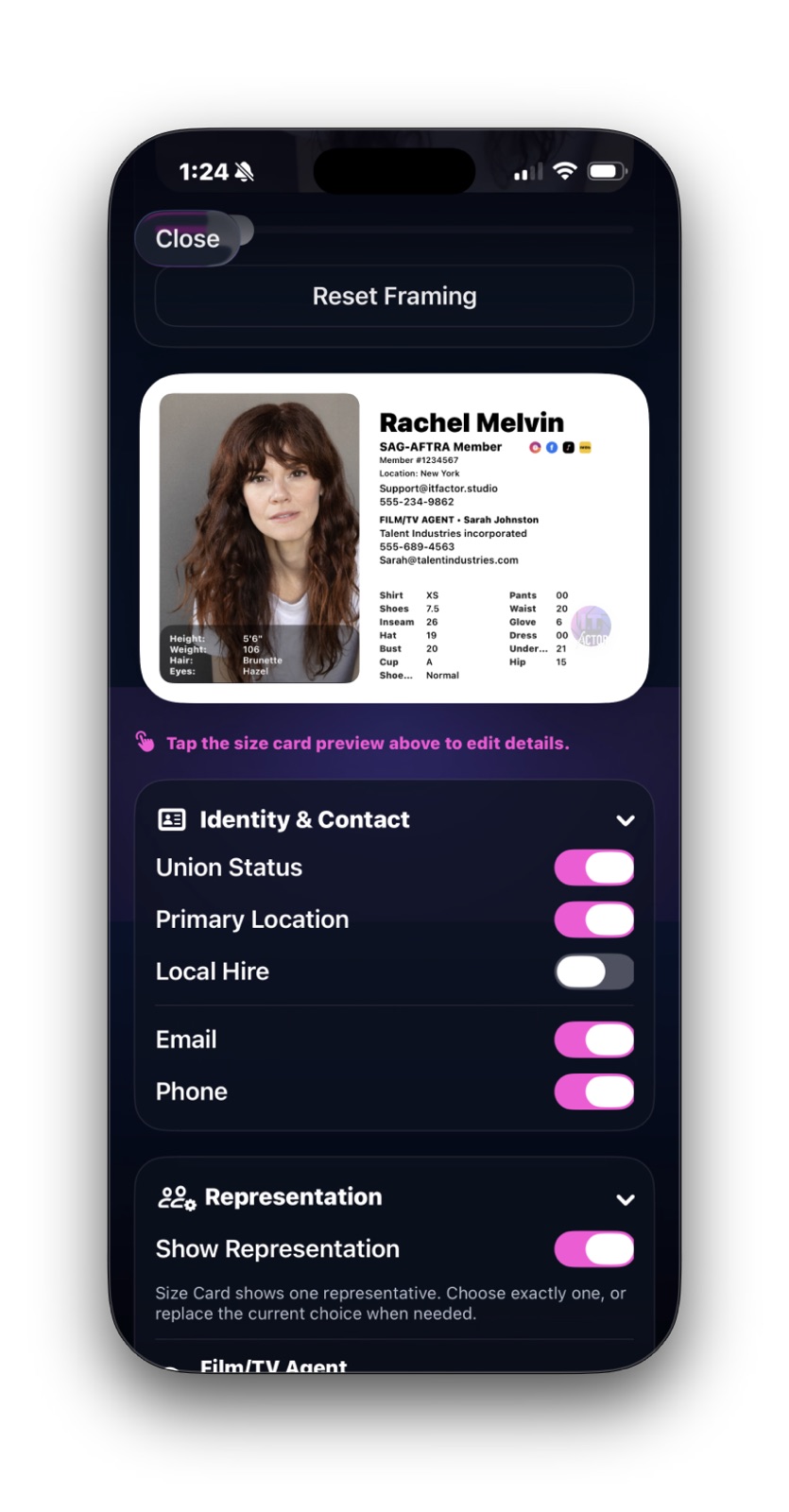
Size Card Creator showing the live preview and identity and contact toggles
The preview shows you the real effect of each identity and contact toggle as you build the card.
Size Card Creator showing the local hire override field turned on in the identity and contact section
When local hire is enabled, you can type the market exactly the way you want it to appear.
Part 3

Representation, Social Links, and Branding

This is where you decide how much professional context belongs on the card beyond the basics.

Best to show only if useful
  • Representation
  • Social icons
  • Watermark QR branding
The app needs
  • A saved rep before representation can appear
  • Saved links before icons can appear
How rep selection works
  • Agent first
  • Manager second
  • Then the first visible rep

What to focus on here

The card usually looks stronger when it stays selective. Only show the rep details and public links that genuinely help the card do its job.

Social icons are nice when they are professional and public. If a platform is private or more personal than professional, it is usually better to leave it off.

If you do include them, the exported PDF keeps those social links clickable or tappable. PNG exports are visual only, so they will not carry live links the same way.

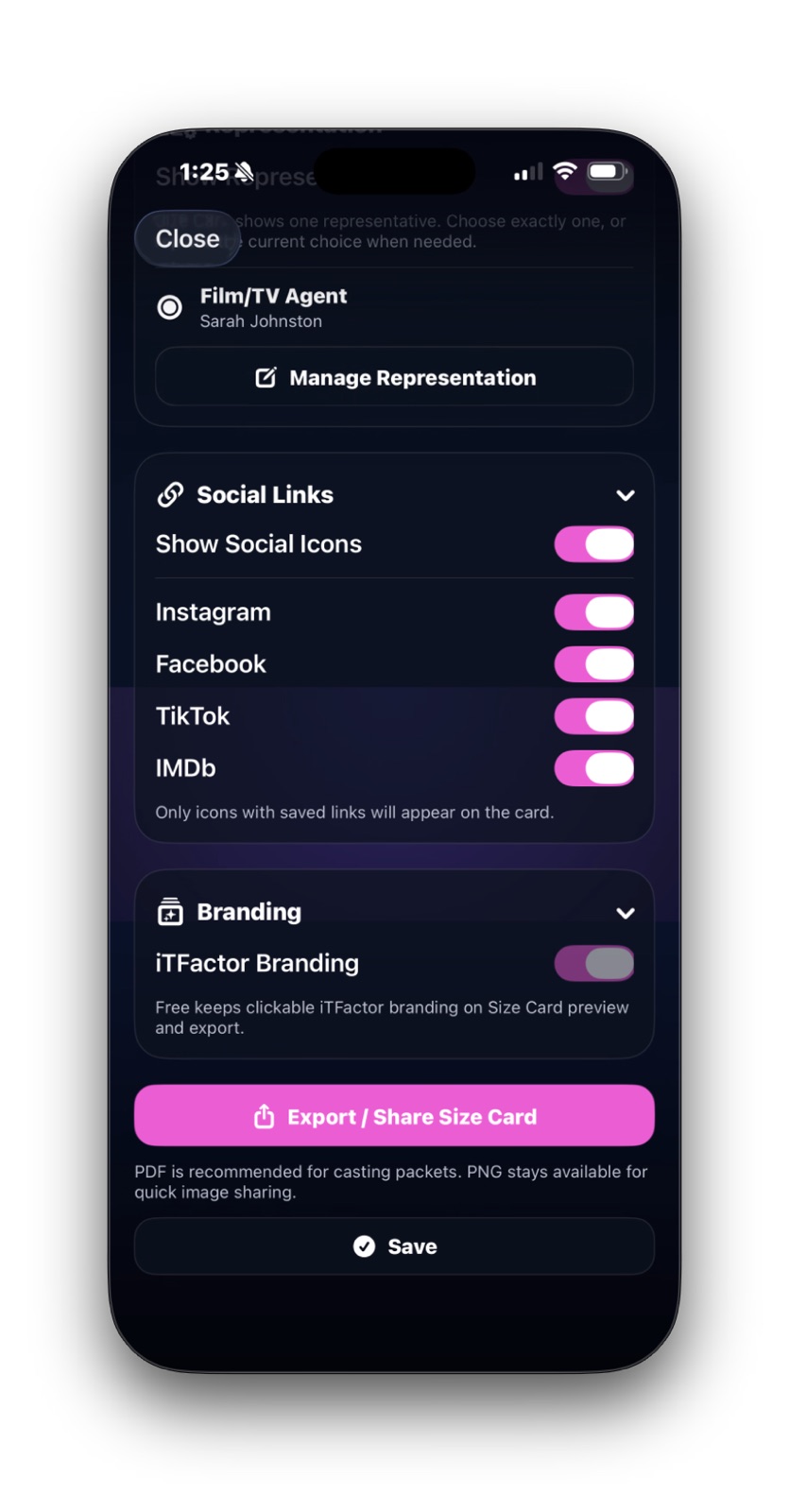
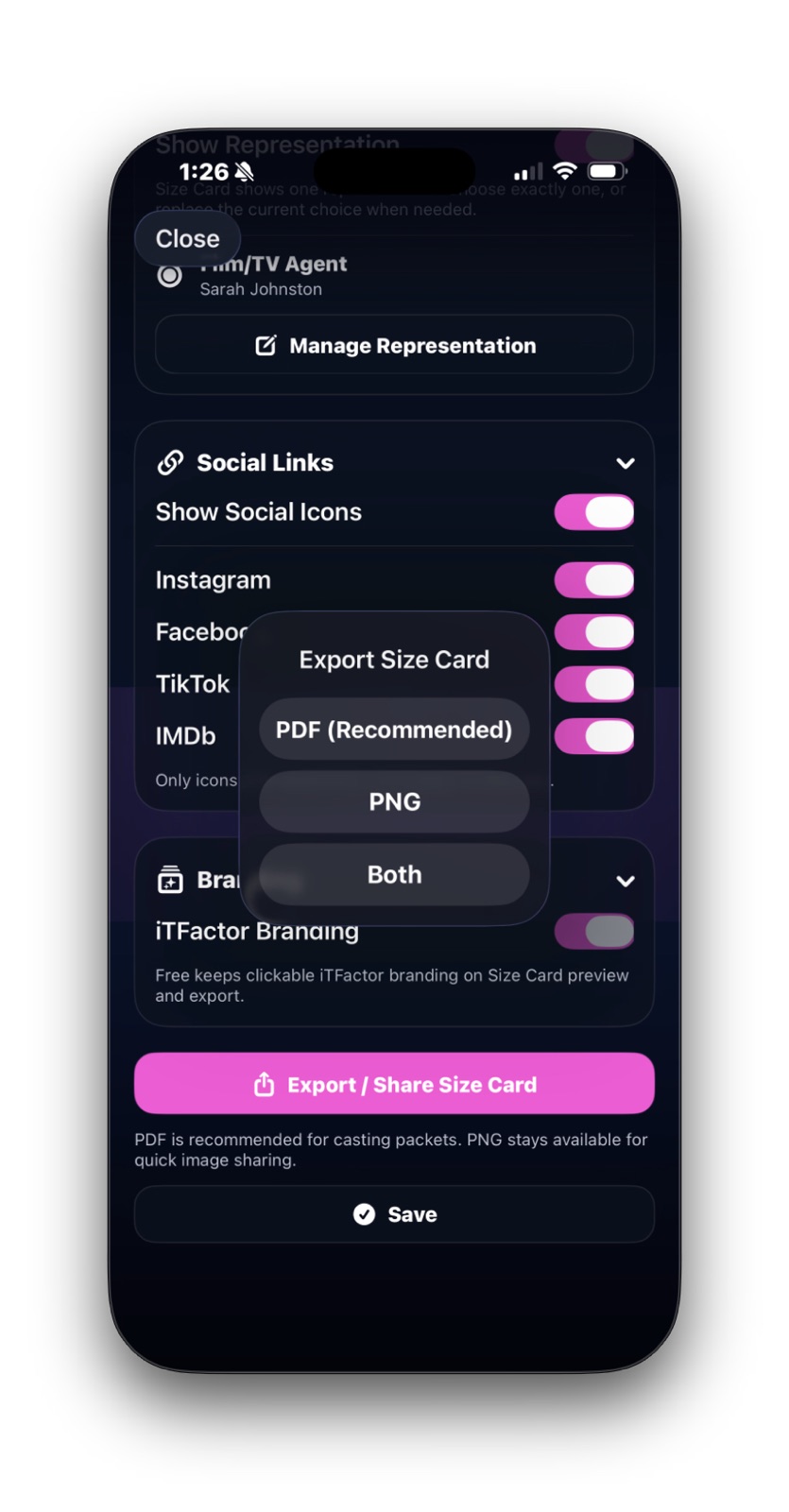
Size Card Creator showing representation, social link, branding, and share controls
This section controls the extra layers of the card, including reps, social icons, branding, and the share action.
Part 4

Size Card Settings

This is where you refine the layout and decide exactly which measurements the card should show.

You can adjust
  • Card type and sizing profile
  • Label size, value size, and spacing
  • Which measurements stay visible
Helpful shortcut
  • Update Sizes returns you to the profile wizard
  • Your card progress stays intact
Used later in
  • The final card preview
  • PDF and PNG exports
  • Ongoing saved card preferences

What to focus on here

Settings is the place to make the card feel cleaner, not fuller. Adjust spacing and visible measurements until the information feels easy to read.

If you notice missing or outdated sizes, use Update Sizes instead of trying to work around the problem. That keeps the source information cleaner for everything else too.

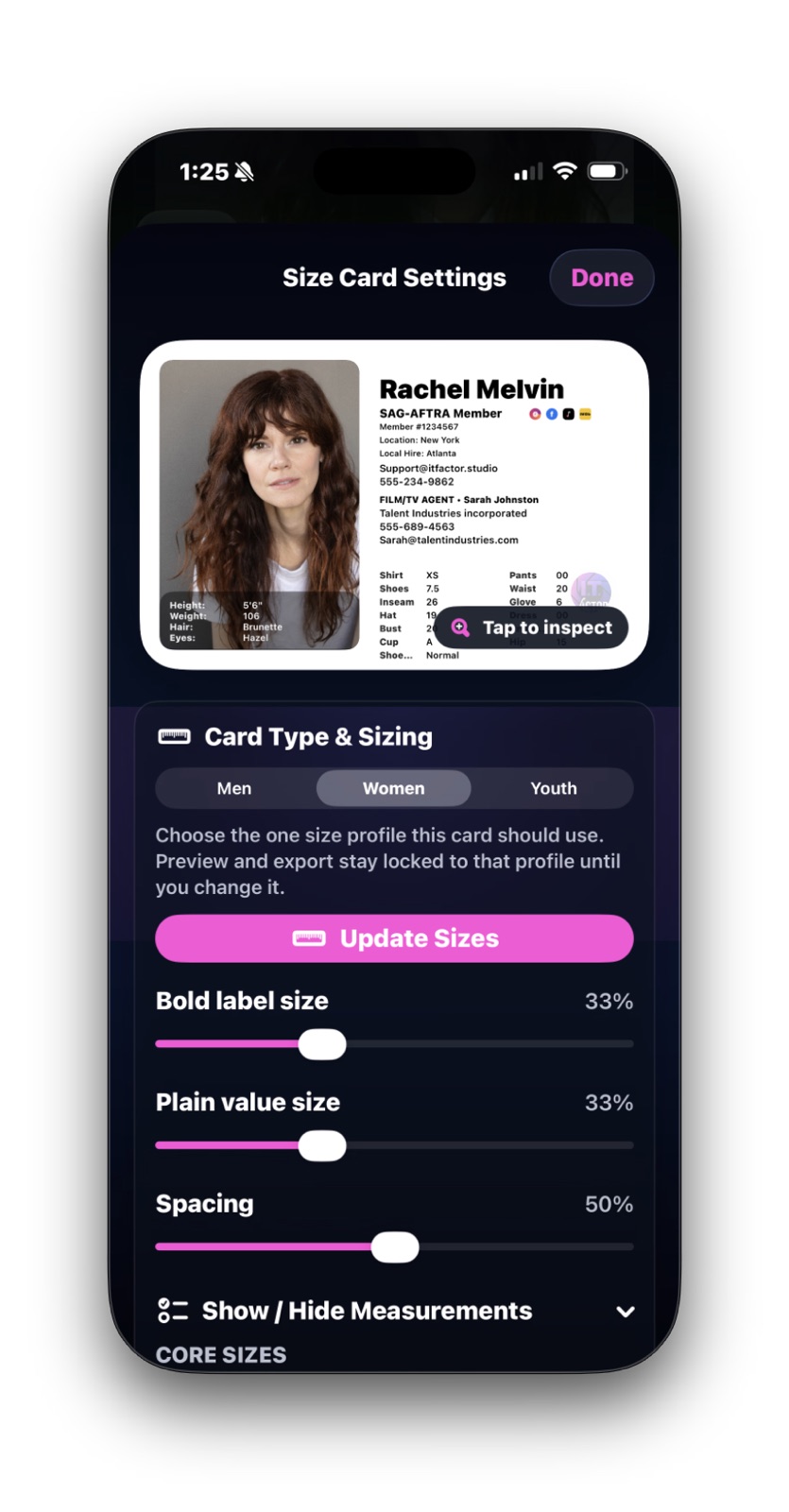
Size Card Settings screen showing preview, sizing profile, and controls for label size, value size, and spacing
Tap the preview to reach settings, then use these controls to tune the card’s readability.
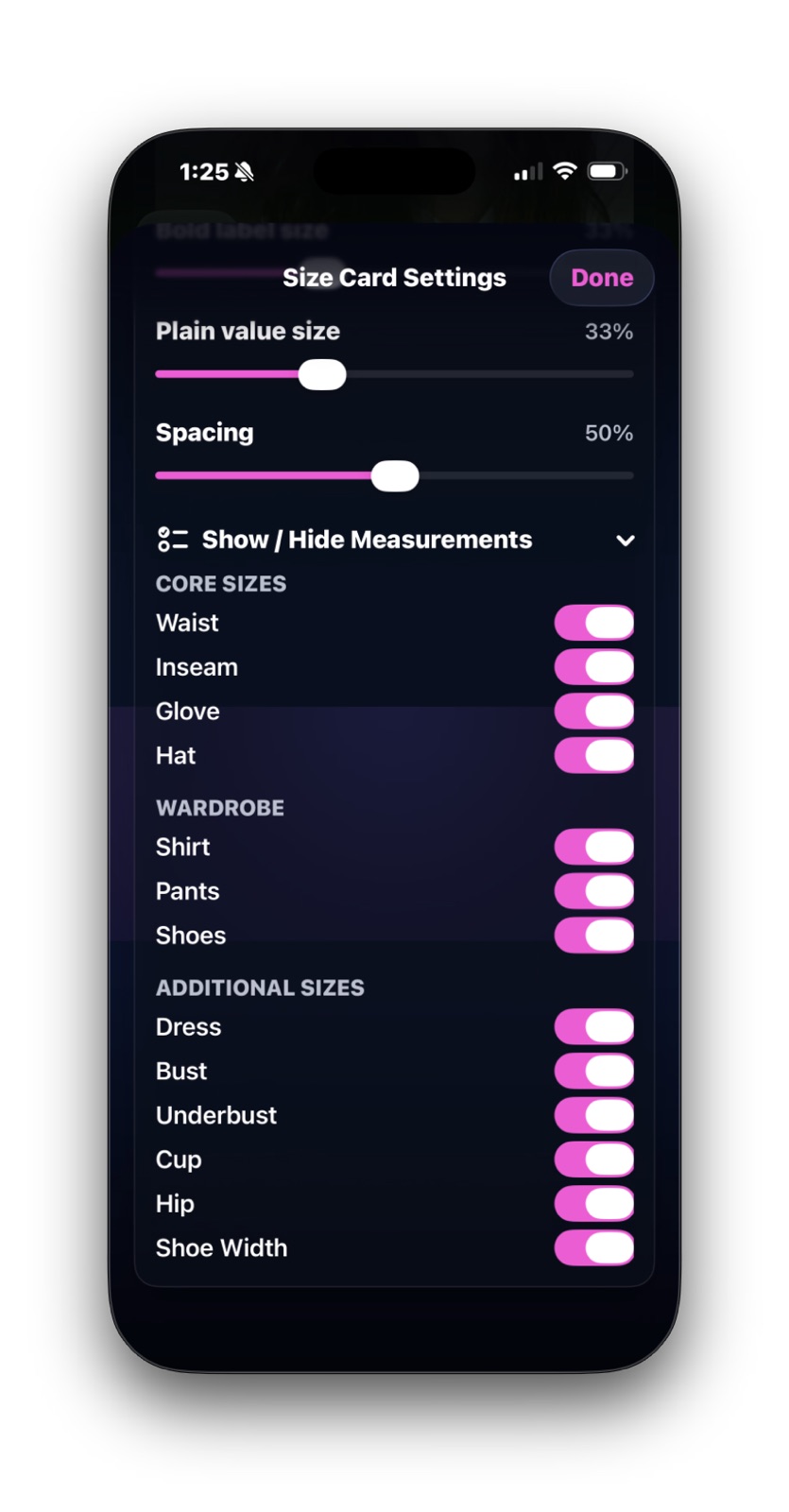
Size Card Settings screen showing switches for core sizes, wardrobe items, and additional measurements
Show only the measurements that make the card more useful. More is not always better here.
Part 5

Save and Share

Once the preview looks right, this last part is about choosing the share format that fits the moment.

Share options
  • PDF (Recommended)
  • PNG
  • Both
Usually best
  • PDF for standard professional sharing and live social links
  • PNG only when an image is specifically needed
Final check
  • Make sure the card is readable
  • Make sure it does not feel crowded
  • Make sure the right rep and links are showing

What to focus on here

PDF is the safest default for most professional sharing. PNG is useful when someone specifically wants an image or when you need more flexibility.

If your card includes social links, PDF is also the better choice because those links stay clickable or tappable in the exported file.

Before you export, take one last pass through the preview and make sure the card feels intentional. That extra glance usually catches the details that matter.

Size Card Creator export menu showing PDF, PNG, and Both options
When the card looks right, choose the export format that fits how you need to send it.

Quick Help

A few Size Card details explained.

These are the parts of Size Card Creator that tend to raise questions the first time through. Here’s what they mean in plain language.

Preferred headshot

The card works best when the chosen headshot already feels like your professional main image.

Email and phone toggles

These only work when those details already exist in your profile. If they are missing there, they cannot appear here.

Local hire override

This gives you a simple way to type the local hire market exactly as you want it shown on this card.

Update Sizes

Use this when the card reveals missing or outdated size information. It sends you back to the profile wizard without making you start the card over.

Primary rep selection

The card chooses one primary rep in a clean order: agent first, manager second, then the first visible rep.

Share formats

PDF is usually the best default. It keeps the card professional and preserves clickable or tappable social links when those are shown. PNG is useful when someone specifically needs an image instead.

FAQ

Quick answers before you move on.

What if I need to fix my sizes while I am already building the card?
Use Update Sizes. It sends you back into the profile wizard without making you start over.
What if my card looks crowded?
Open Size Card Settings from the preview and reduce the visible details until the card feels cleaner.
What if my headshot looks too zoomed in or too low?
Use the framing section to reposition and zoom the image, then reset if you want to start over.
What if a social icon is not showing up?
Make sure social icons are enabled, that platform is turned on, and the link already exists in your profile.
What if my rep is not showing?
Make sure Show Representation is on, at least one rep is saved, and the rep category you want is enabled.

Related Guides

Keep going when you are ready.

Size Card Creator works best when your profile and ActorKit details are already in decent shape.

Previous ActorKit

Return to the wider mobile office that the size card pulls from.

Next New Project Wizard

Move into project setup once your professional materials feel more ready.

Download iT Factor

Build a shareable card that feels clear, current, and easy to send.

Size Card Creator works best when you keep the card simple, readable, and built around the details that actually help.